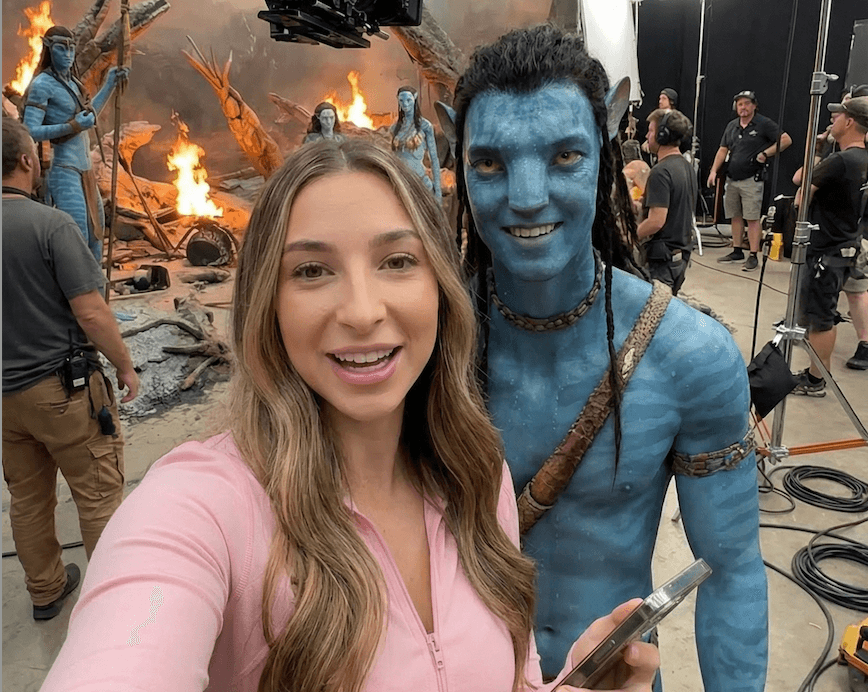
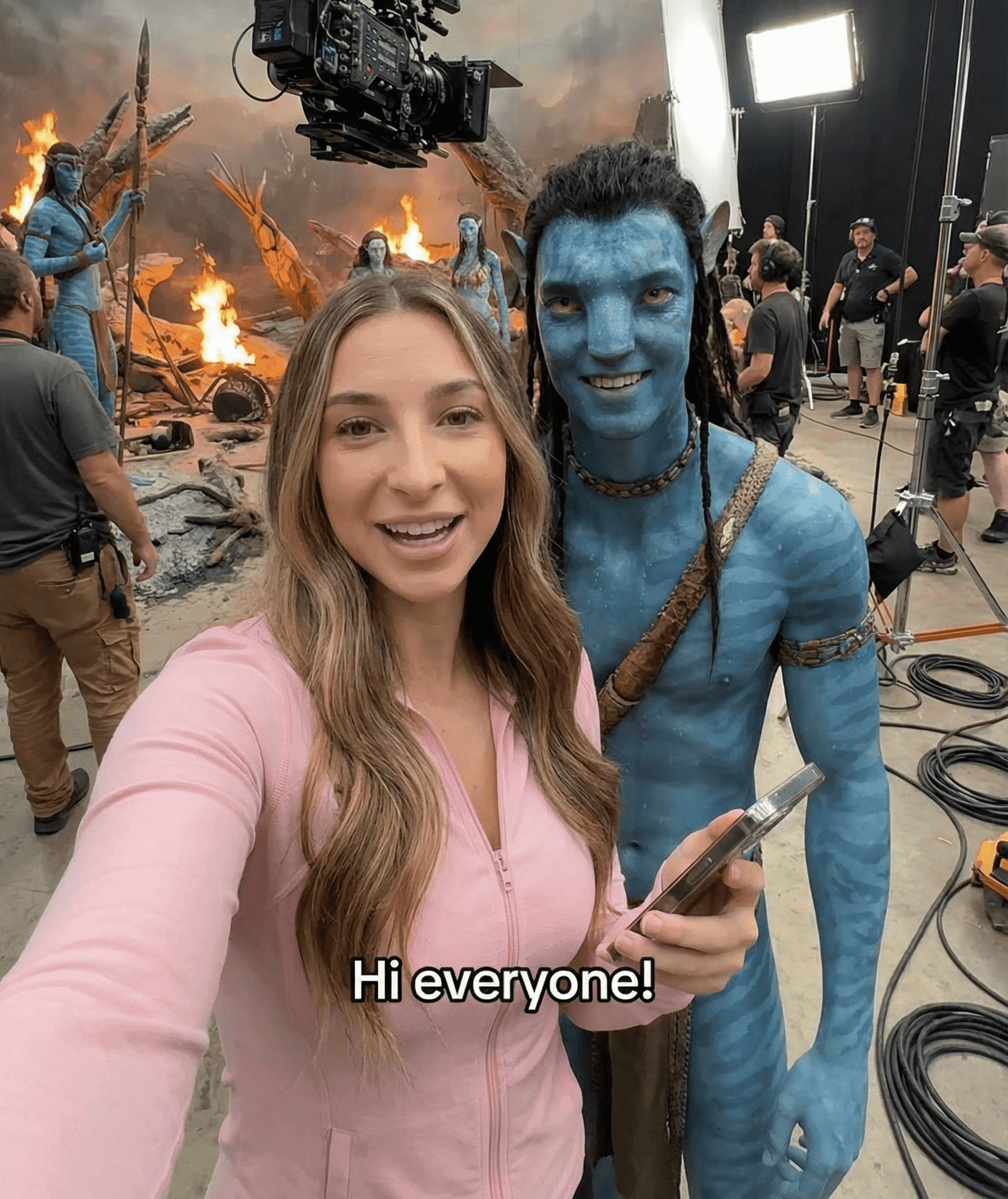
You’ve probably seen these types of videos on your feed in the past few days: people taking selfies behind the scenes on set with the Stranger Things, Squid Game, or Dune. These clips are generated using AI and are going absolutely viral on Instagram lately. And guess what? They’re quite easy to make.
Step-by-step to Create Your Own AI Movie Set Clips
First, let’s think about which behind-the-scenes movie set you want to replicate. For this guide, we’ll use the movie set of the Avatar movie.
Step 1: Log in to Liminal AI
After having a movie set in mind, the fun part can begin! First, log in to Liminal AI.
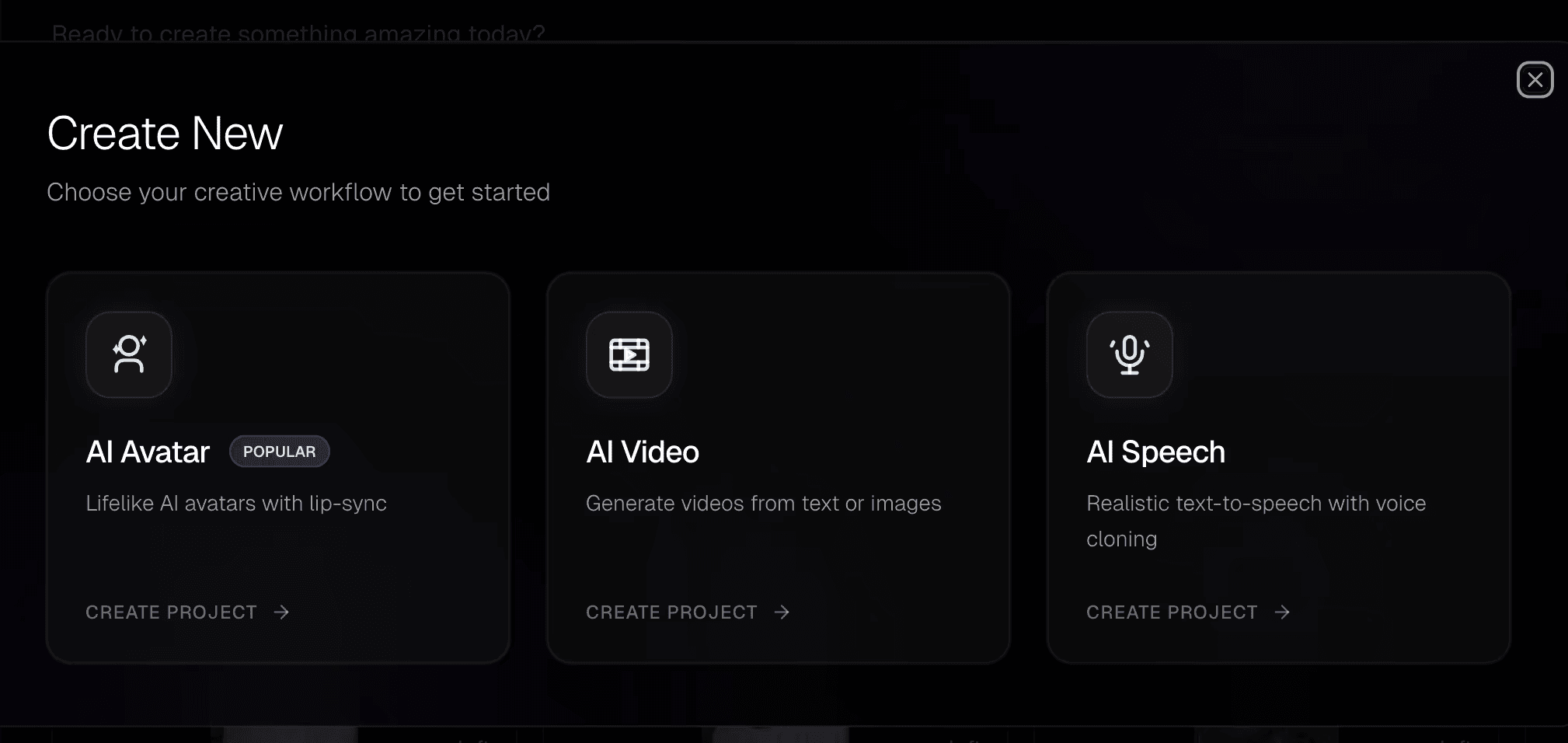
Step 2: Click “Create AI Avatar”
Then, navigate to “ Create AI Avatar” to start your project.
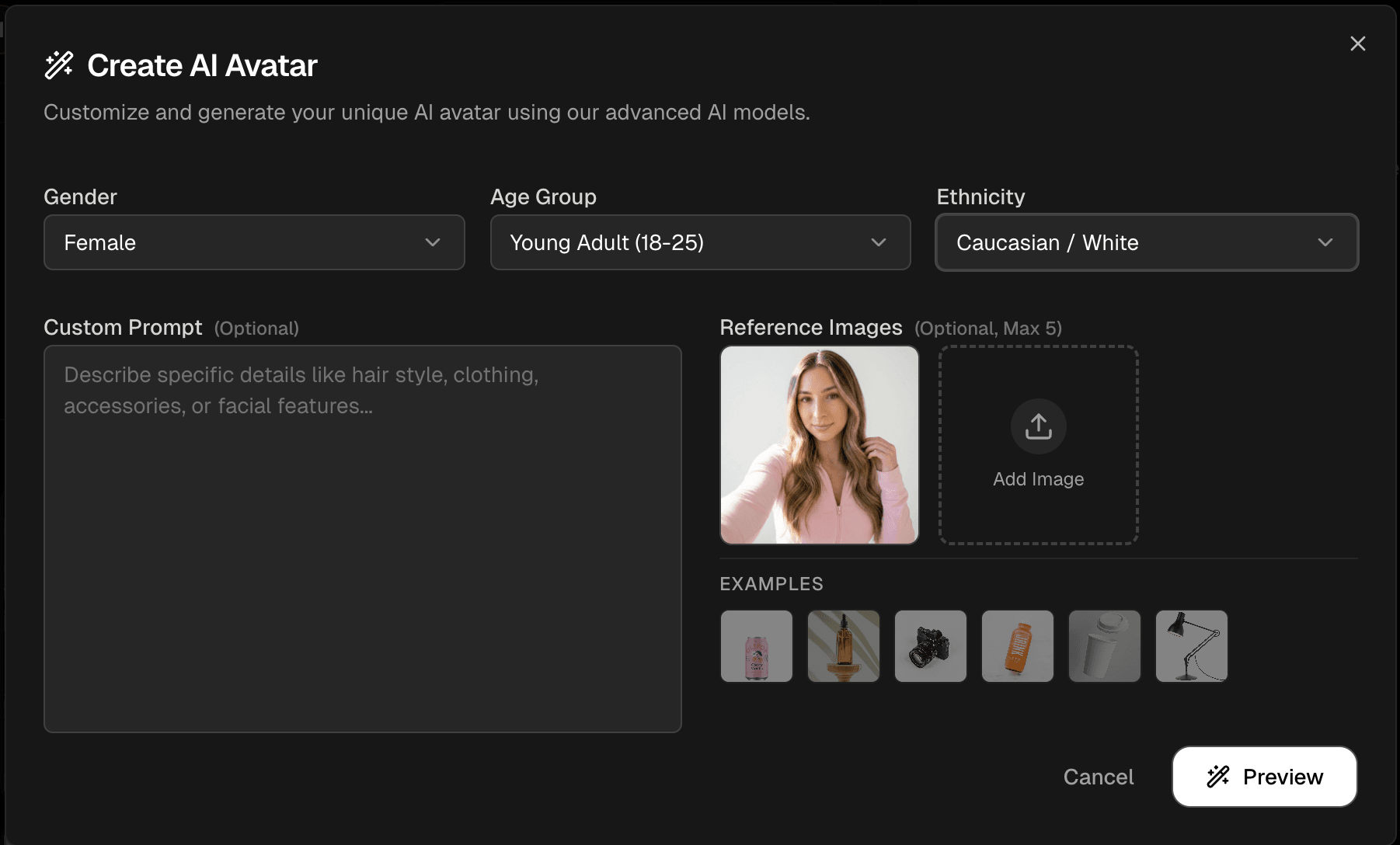
Step 3: Upload a Selfie of Yourself
To create the set, you’re going to upload a selfie of yourself first. To do this, go to “My Avatars” and click “Generate AI Avatar”. Go ahead and upload a clear picture of yourself as a reference image.
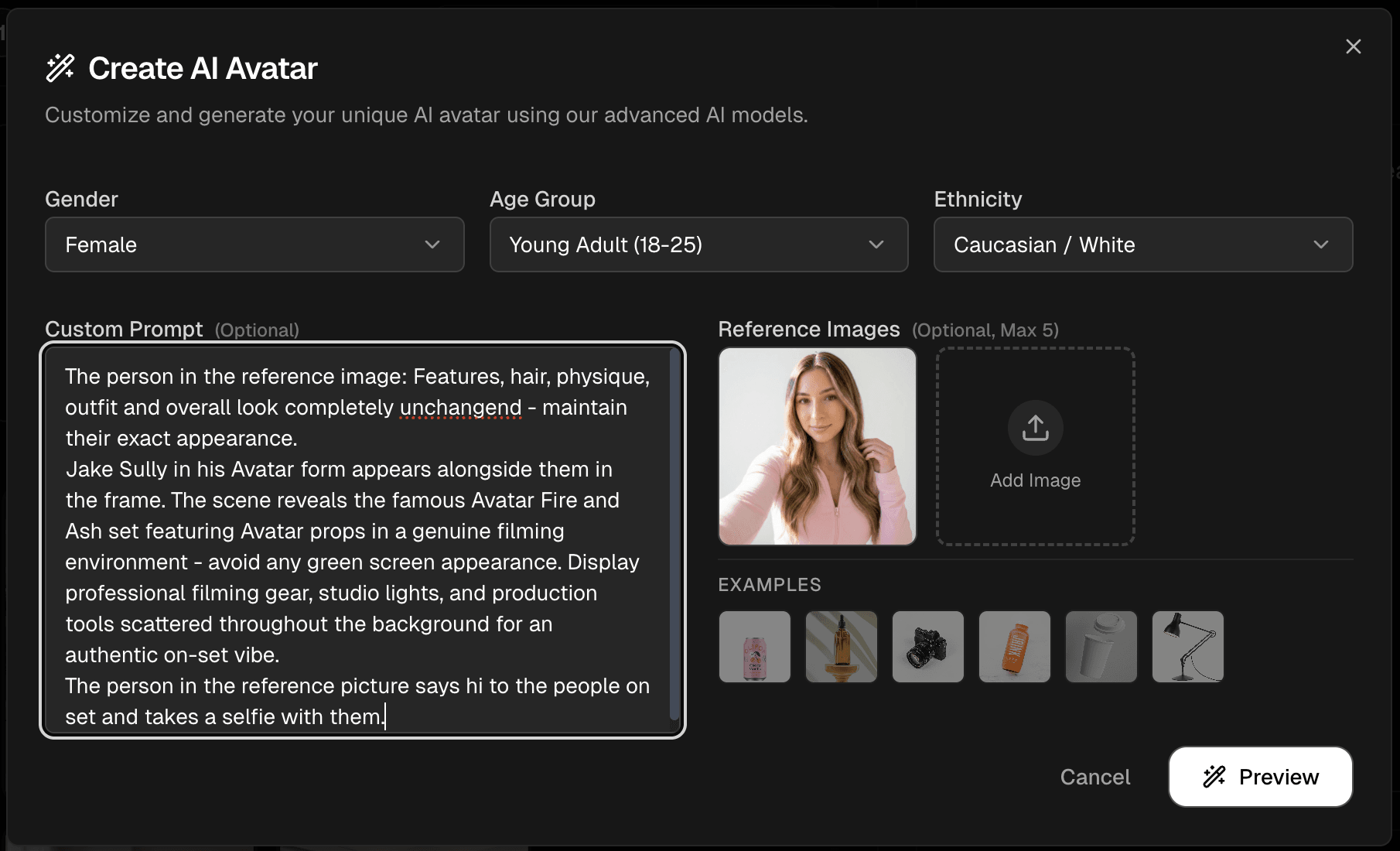
Step 4: Upload a Prompt
In the same space as step 4 under “Custom Prompt”, copy and paste the following prompt:
The features, hair, physique, outfit, and overall look of the person in the reference picture remains completely unchangend - maintain their exact appearance. [INSERT ACTOR NAME] appears alongside the reference image person in the frame. The scene reveals the famous [INSERT MOVIE NAME] set featuring [ICONIC PROPS IN THE MOVIE] in a genuine filming environment - avoid any green screen appearance. Display professional filming gear, studio lights, and production tools scattered throughout the background for an authentic on-set vibe. The person in the reference picture says hi to the people on set and takes a selfie with them.
Step 5: Check the preview
We’re almost there! Go ahead and hit the preview button to check the preview (don’t worry, this won’t cost credits). You can make any adjustments you’d like. Once you’re happy, simply hit generate, and you’ve generated yourself in the behind-the-scenes movie set of your choice!
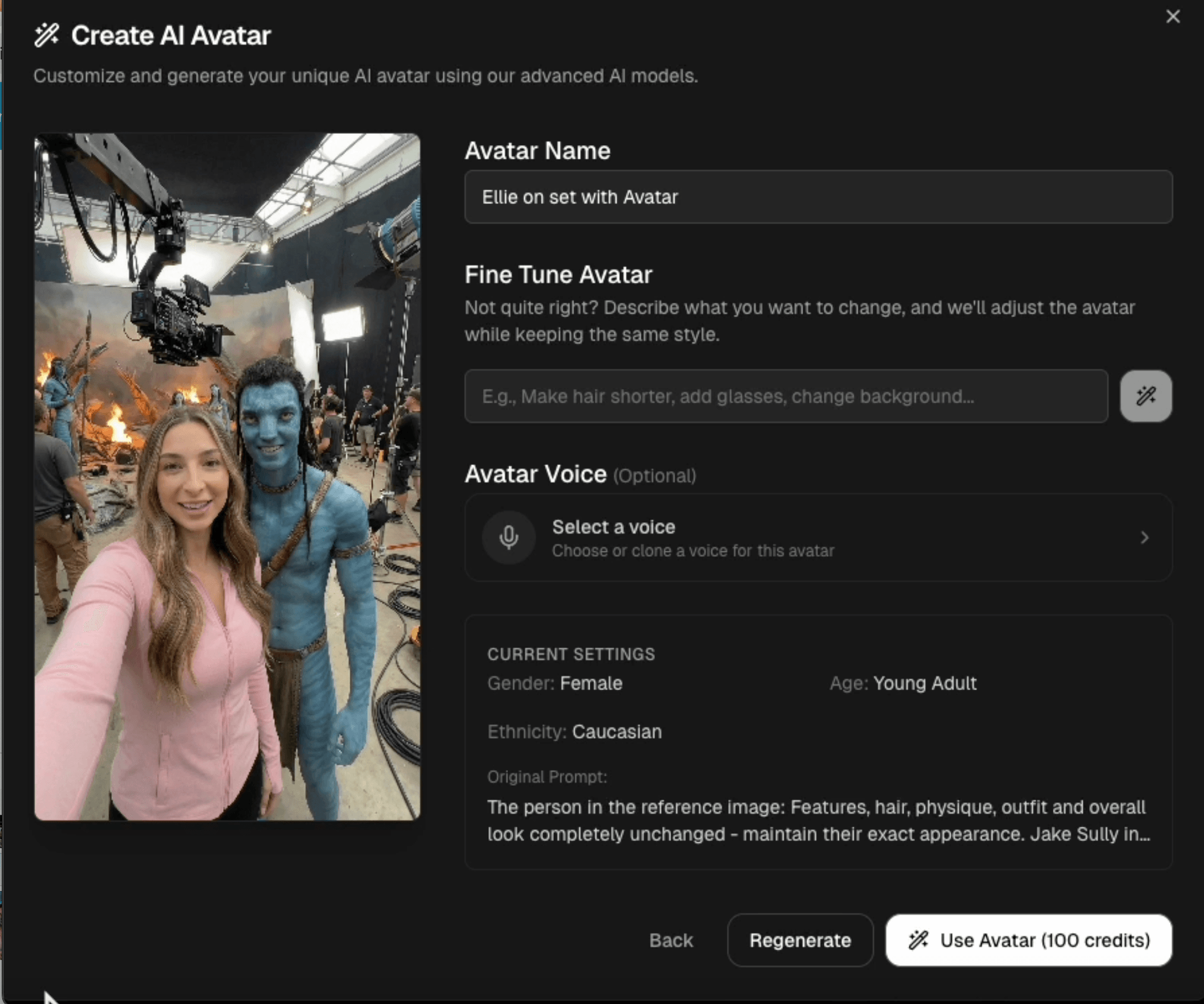
Step 6: Use Avatar
Now that you’ve generated your movie set, you can use it to create your own videos. You can find it in the “My Avatars” section. Select it, pick out a voice, or clone your own voice and enter a script! To generate multiple scenes from different movie sets, simply follow the steps again.
Frequently Asked Questions (FAQs)
How long does it take to generate a video?
Using the steps above, it shouldn’t take longer than 5 minutes to generate 1 video.
Can I also upload the movie set I want as a reference picture?
Absolutely! Make sure you modify the prompt and specifically state that it should use your reference as the movie set without changing it.
Is it legal to use these videos for commercial purposes?
The purpose of these videos is entertainment only. For commercial use, make sure to check with your local legal laws and platform guidelines.
Are these videos copyrighted?
AI creates original clips inspired by movies, but it doesn’t actually use the real movie footage. However, it’s important to note that you should always give credit where appropriate.